

Google Maps Automated Data Collection Software Instructions
Software Installation
Download the latest installation file from our official website: [Download Link]
Then, click Next and follow the installation prompts.
Using the Software
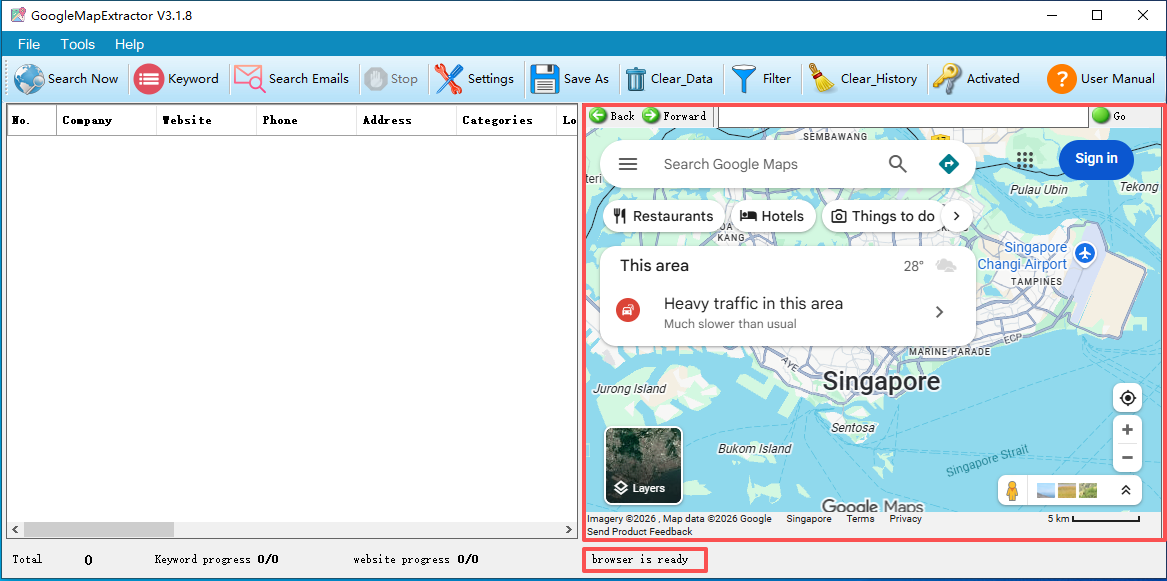
1.Main Interface and Network
Before using this software, please ensure your network connection is stable.
Once the software is opened, the map will be displayed on the right side of the interface, indicating that the software is ready to use.
2.Setting Keywords
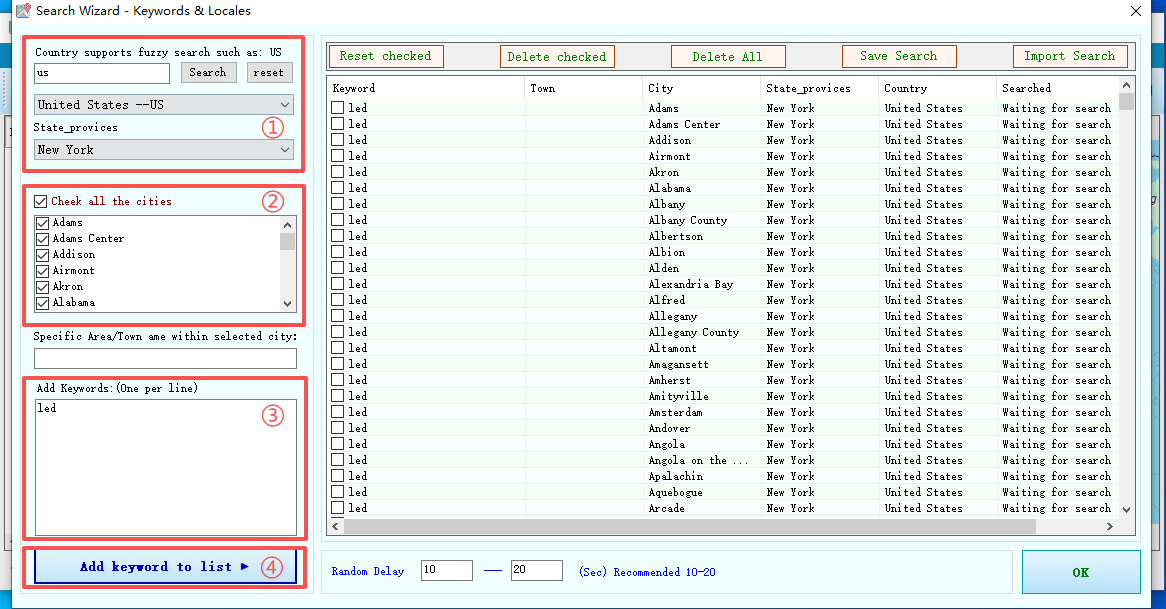
Click the Keywords button to open the keyword settings:
Enter one or multiple keywords, select the country/region and city in order, then click Add to List.
The program will automatically generate all search tasks and add them to the table below.
After confirming the information is correct, click OK.
3.Start Collecting Basic Data
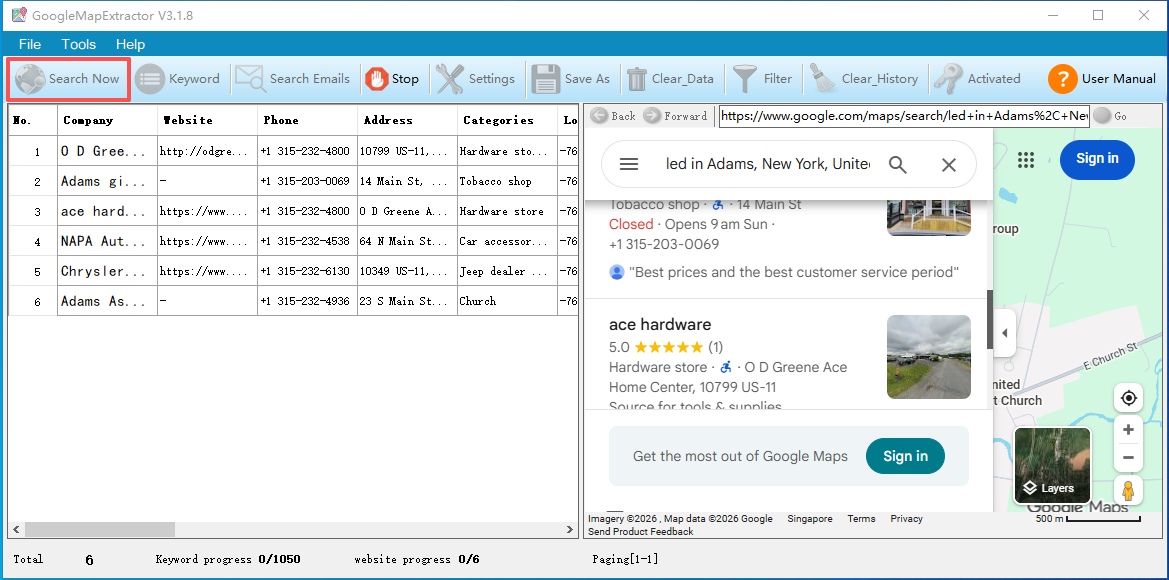
Click the Start Search button on the main interface.
The program will automatically collect data without any manual intervention.
4.Official Website Mining (Social Media Data Collection)
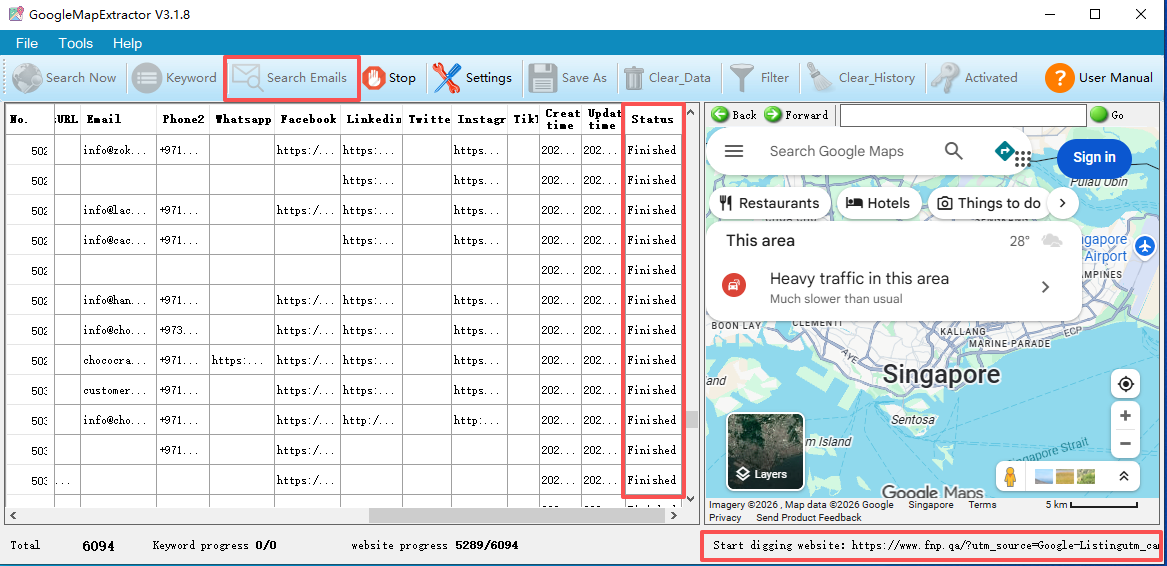
Once basic data collection is complete, click Official Website Mining.
The program will automatically crawl official websites and perform in-depth analysis of homepage and secondary pages, extracting social media information such as WhatsApp, Email, Facebook, LinkedIn, and more.
5.Data Export
There are no restrictions on data export or collection.
Click Save As to export the data to Excel.
To filter the data, click Filter.
6.Others
The software supports trial use.
If you encounter any issues, click Contact Support.
7.Video Tutorials
[ YouTube Link] [Local Link]