Quick Start
Welcome to GoogleMapExtractor
This guide will help you complete your first lead generation project in just a few minutes. By following the steps below, you'll learn how to search Google Maps, collect business information, discover business email addresses, and export your results.
If you've already installed and activated the software, you're ready to begin.
Before You Start
Before creating your first project, make sure:
- GoogleMapExtractor is installed successfully.
- Your subscription or free trial is activated.
- Your computer is connected to the Internet.
No additional browser extensions or third-party tools are required.
Step 1 — Create a New Task
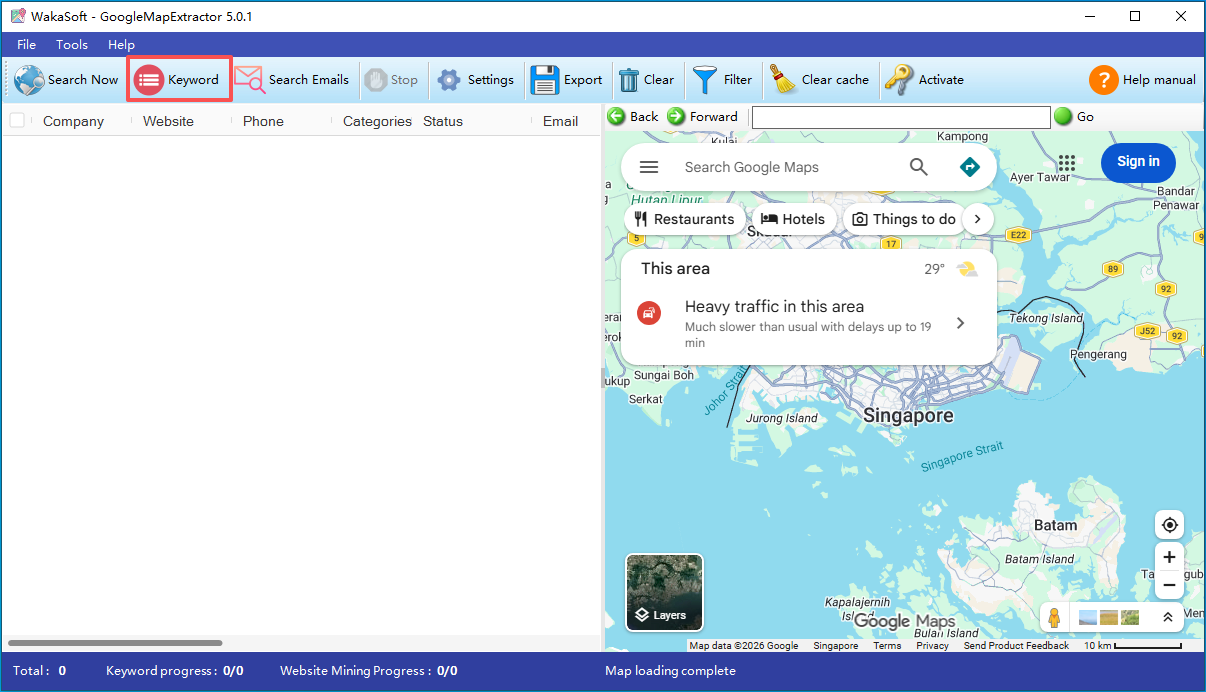
Click the Keyword button to open the extraction task window
Step 2 — Enter Search Keywords
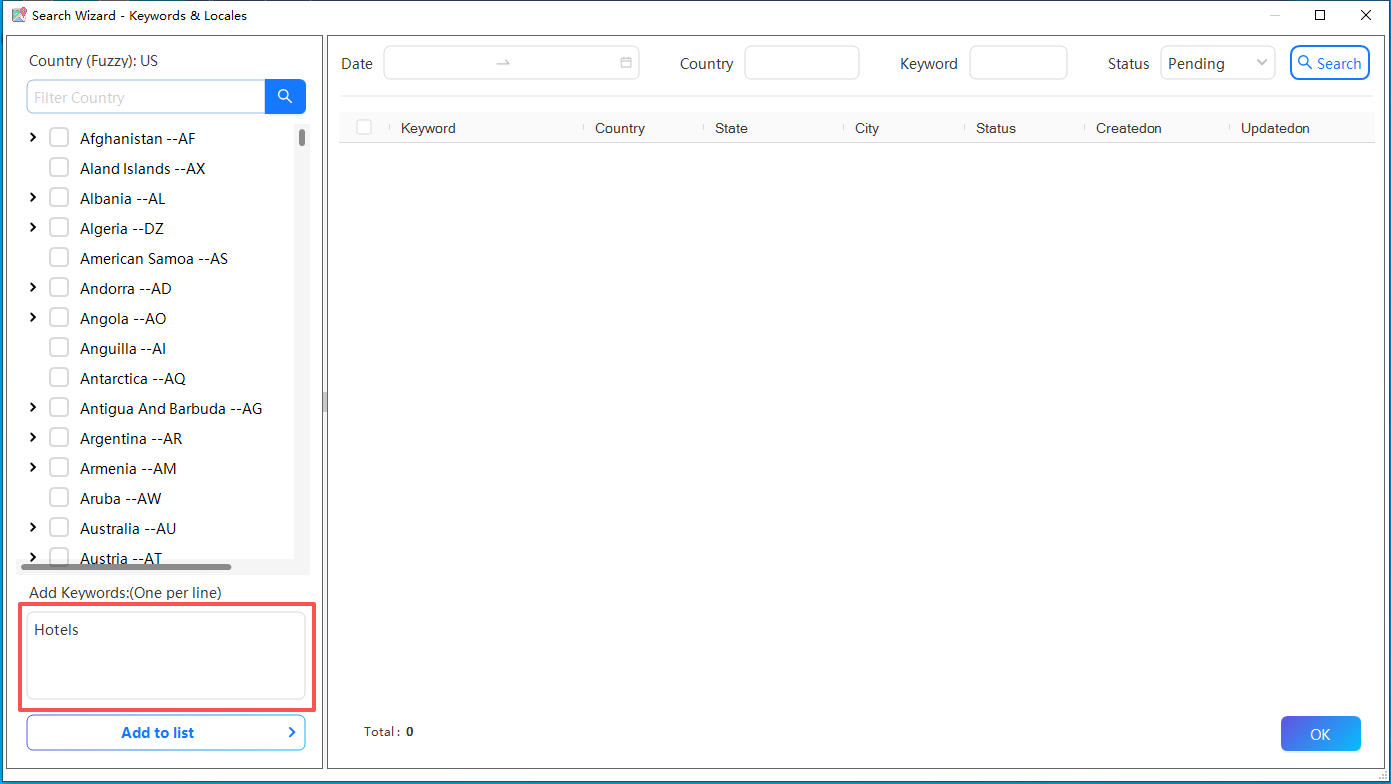
Enter the company keywords you want to search for
Examples include:
- Restaurants
- Dentists
- Hotels
- Real Estate Agencies
- Roofing Contractors
- Lawyers
- Manufacturers
- Coffee Shops
- Marketing Agencies
Using specific keywords generally produces more relevant results.
Step 3 — Select a Location
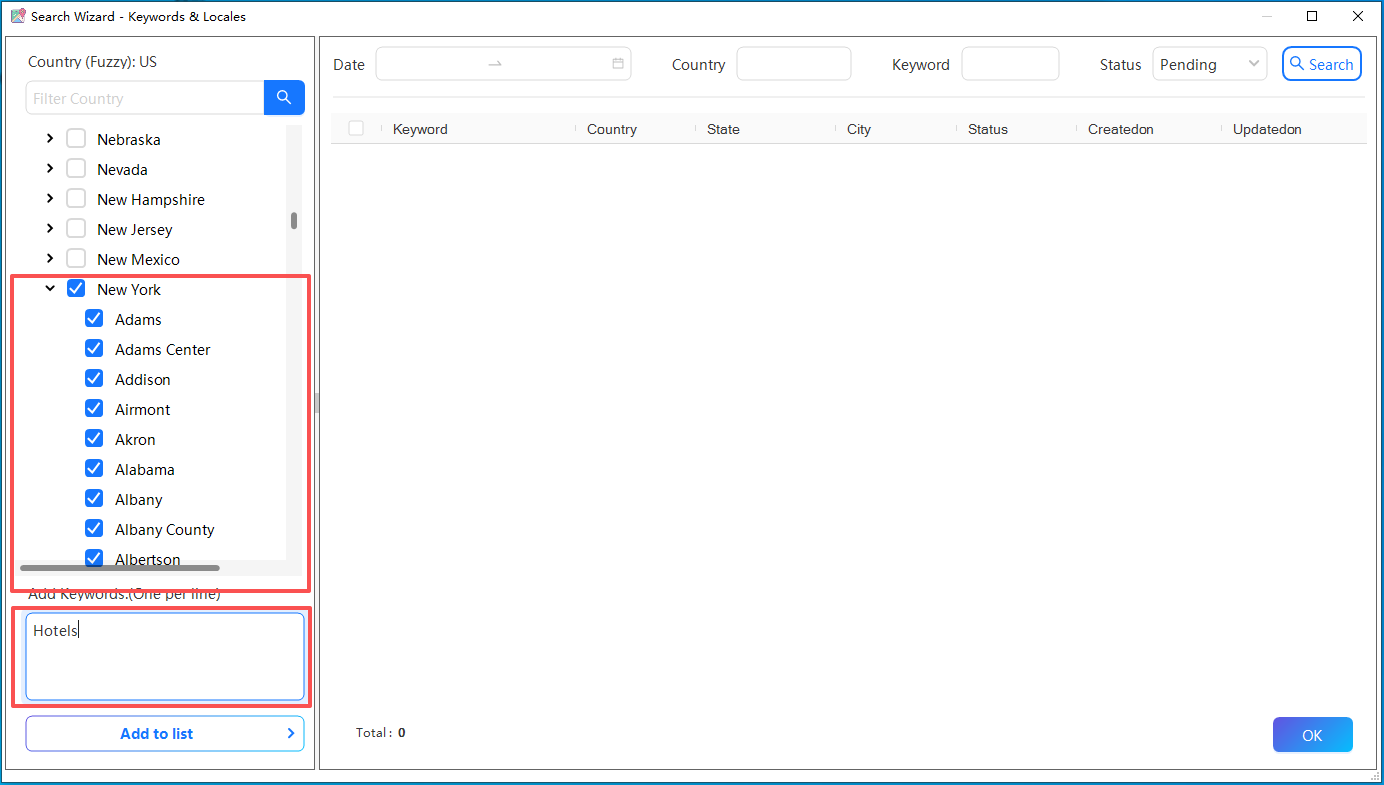
Choose the target market where you want to search.
GoogleMapExtractor includes a built-in global location database covering:
- Countries
- States
- Provinces
- Cities
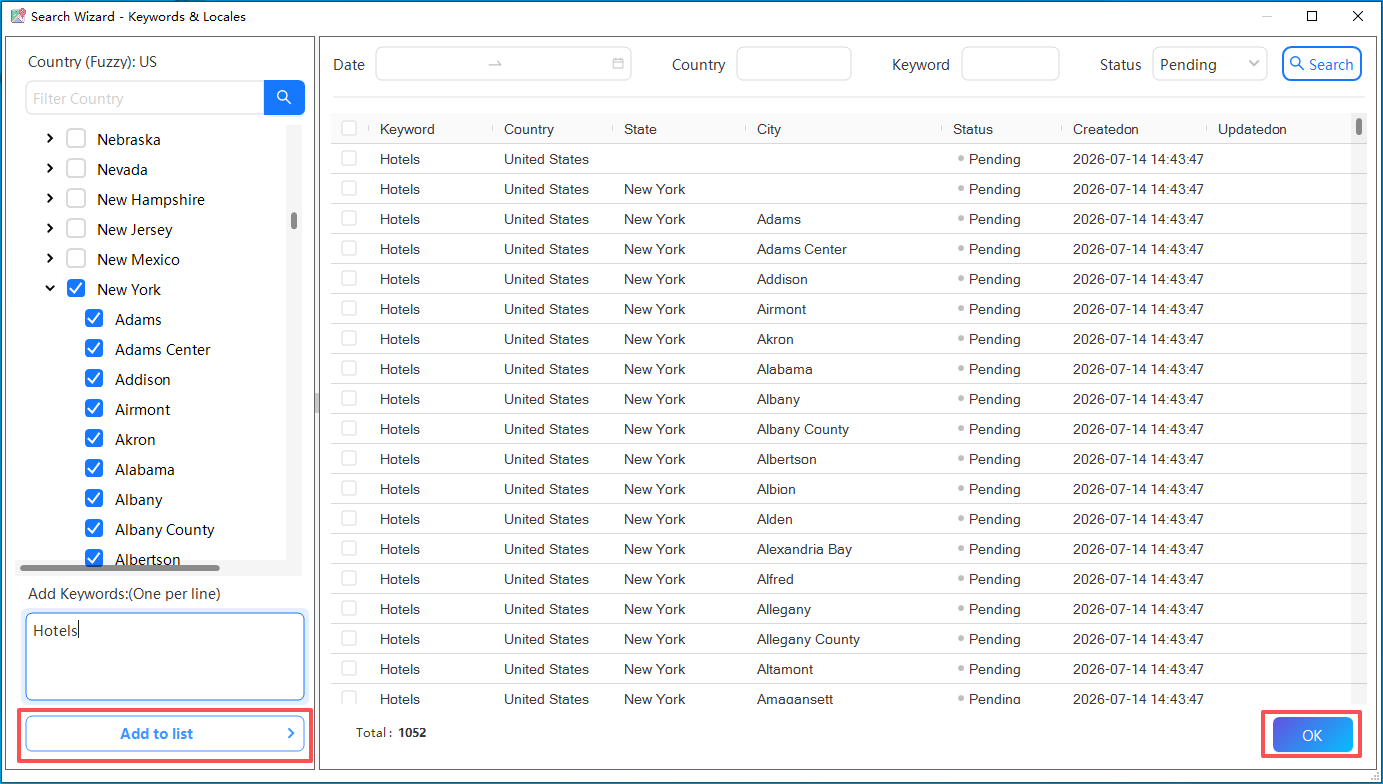
You can search locally or expand your campaign to multiple regions.
Step 4 — Start Google Maps Search
Click Search Now to begin searching Google Maps.
The software automatically:
- Searches businesses matching your keyword
- Loads business listings
- Collects publicly available business information
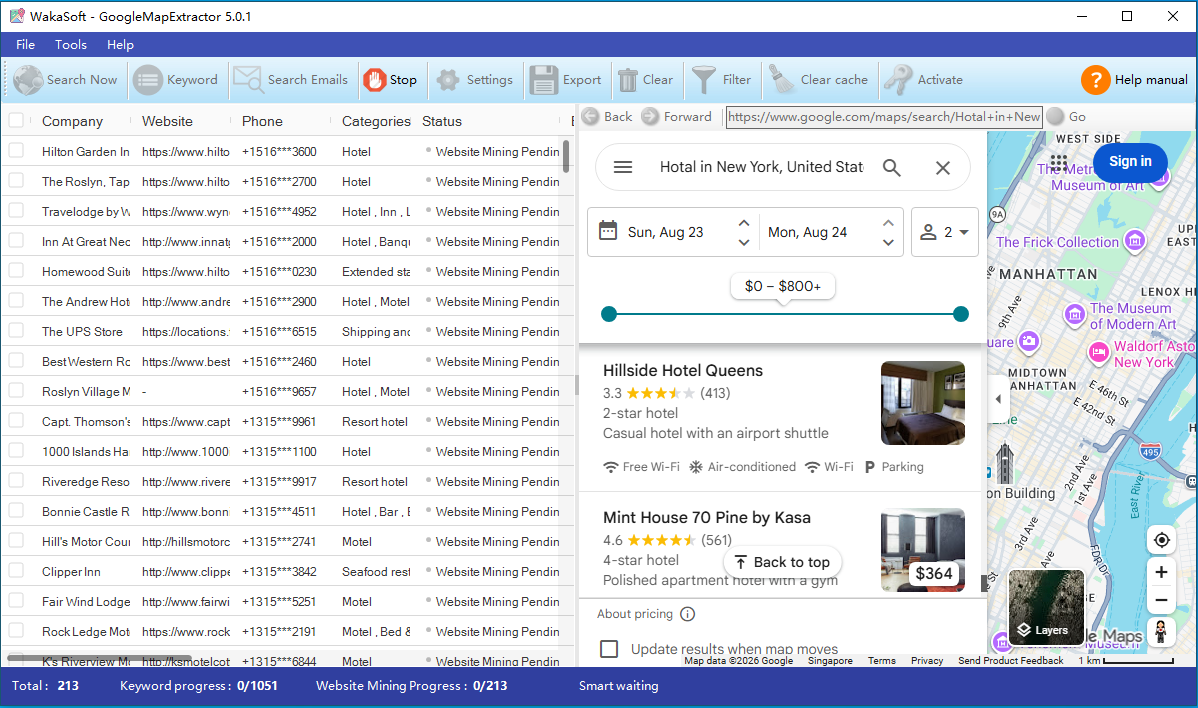
At this stage, you'll begin seeing businesses appear in the results table.
Step 5 — Discover Business Emails
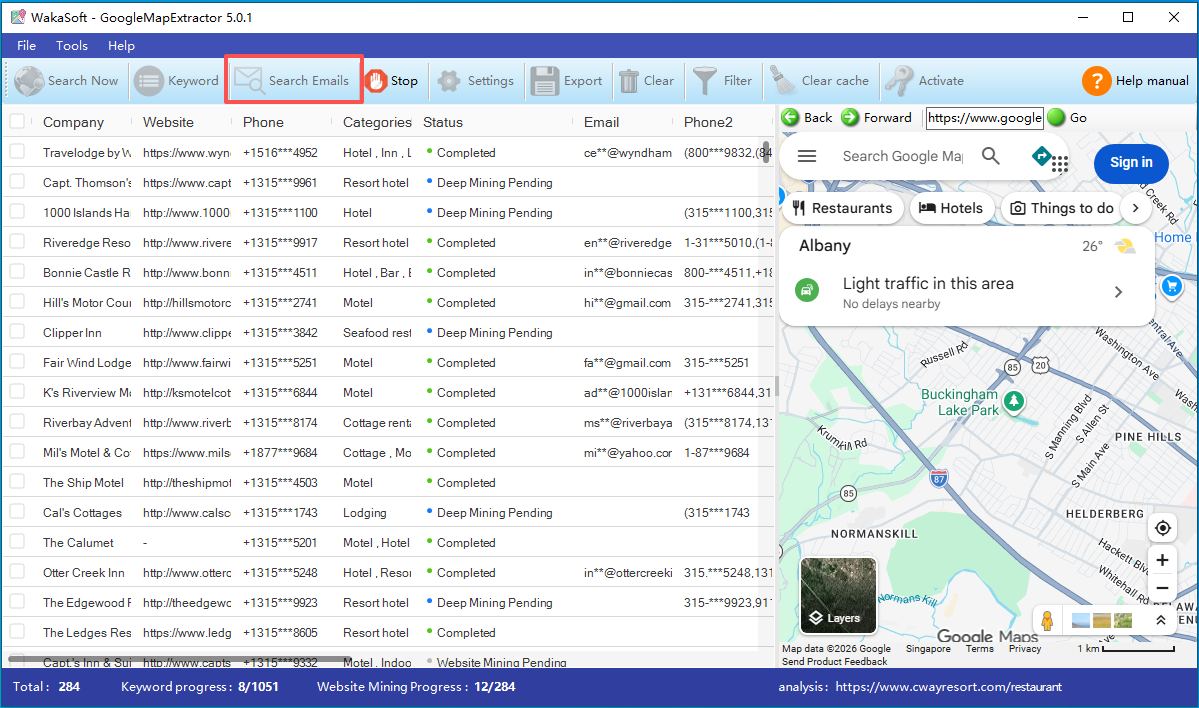
After collecting the business information, click the "Search Emails" button, and Google MapsLead will automatically access each company's website.
It intelligently analyzes:
- Home pages
- Contact pages
- About pages
- Footer sections
- Other publicly accessible pages
During this process, the software discovers:
- Business email addresses
- Phone numbers
- Contact forms
- Social media profiles
This automated workflow saves hours of manual research.
Step 6 — Review Your Results
As extraction progresses, the results table is updated automatically.
Typical fields include:
- Business Name
- Address
- Website
- Business Email
- Phone Number
- Twitter / X
- TikTok
You can sort, filter, and review your data before exporting.
Step 7 — Export Your Leads
When the extraction is complete, export your results with one click.
Supported export formats include:
- Excel (.xlsx)
The exported files can be imported into:
- Microsoft Excel
- Google Sheets
- CRM systems
- Email marketing platforms
- Sales management tools