Quick Start
Welcome to Email Validator by WakaSoft!
This guide will help you quickly understand the basic operations of the software, including importing email data, performing bulk validation, and exporting results.
Before You Start
Before using the software, please make sure:
- Your subscription or free trial has been activated.
- Your computer is connected to the internet.
- You have prepared the email data you want to validate.
Since this software includes automated processing features, some antivirus programs (such as 360 Security and other Chinese antivirus software) may occasionally generate false positive alerts or block the application.
If this happens, first make sure you downloaded the software from the official WakaSoft website and verify the file's security. If you have any questions, please contact us for assistance.
We sincerely assure you:
This software does not contain any viruses or malicious code. You can use it with confidence.
Step 1 — Import Email Data
Launch the software and click File -- Import from Excel File or File -- Import from TXT File to select the email data file you want to validate.
The software supports the following file formats:
- Excel files (.xlsx)
- TXT files (.txt)
You can also use the built-in import templates to organize your data, making the import process easier.
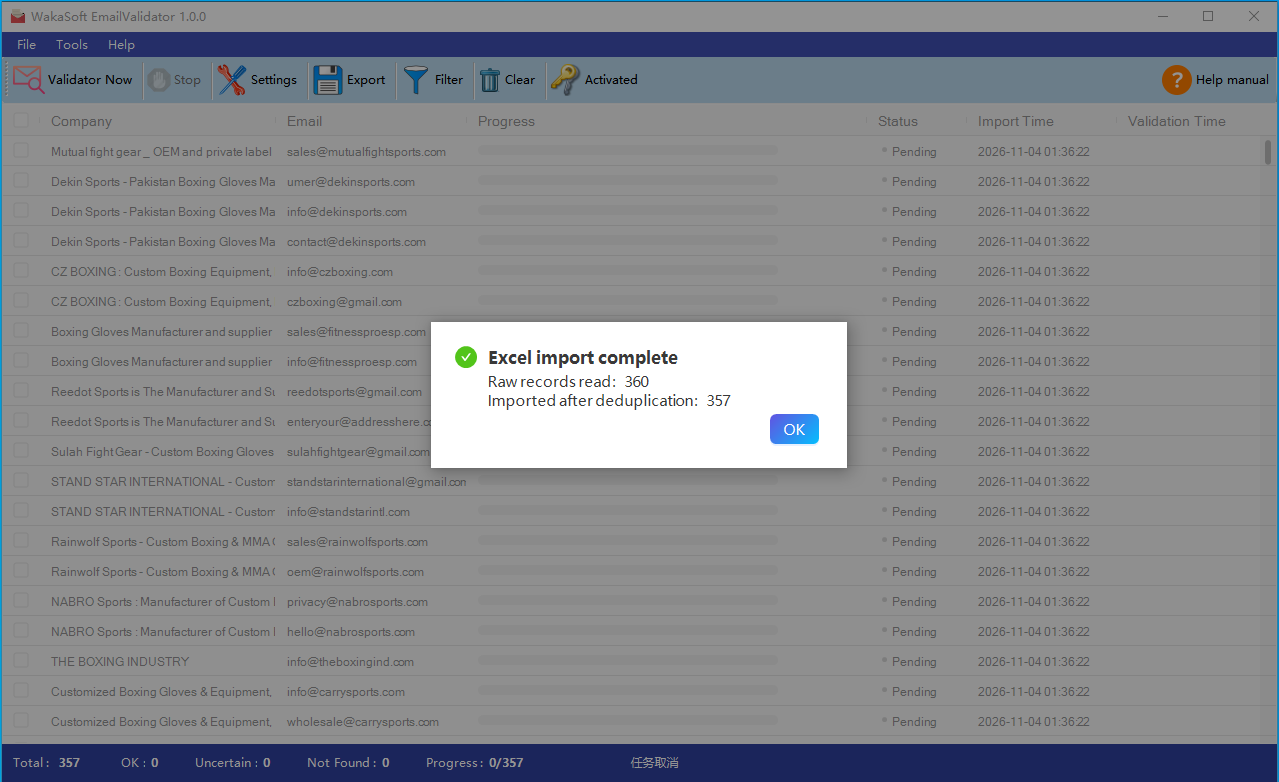
Step 2 — Configure and Start Validation
After importing your data, you can adjust the number of validation threads according to your computer's performance and actual requirements.
Once configured, click the Start Validation button to begin the online validation process.
The software automatically performs the following checks:
- Email format validation
- Domain validity checks
- DNS record lookups
- MX mail server record checks
- Additional domain A / AAAA record checks
During the validation process, you can monitor the following information in real time through the main interface:
- Current validation progress
- Number of emails processed
- Number of Valid, Invalid, and Unknown emails
- Validation status of each email address
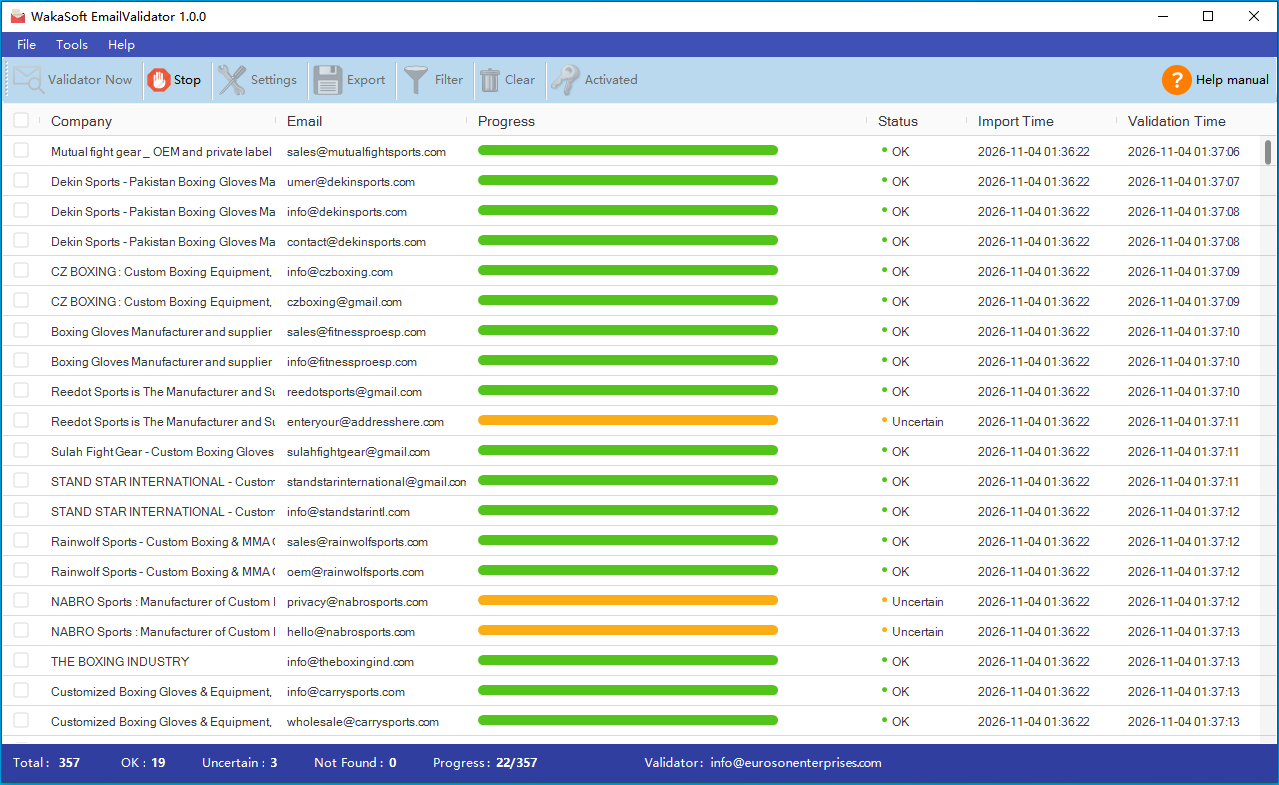
Validation Result Status
- Valid: The validation results meet the requirements for a normal email address.
- Invalid: Clear format errors, invalid domains, or mail server issues have been detected.
- Unknown: The email address cannot be reliably classified under the current validation conditions.
Email validation primarily checks email formats, domains, and related mail server records. It cannot guarantee that a mailbox actually exists or can successfully receive emails.
Step 3 — Filter and Export Results**
After validation is complete, you can sort and filter the data in the software interface to view different categories of email addresses according to their validation status.
For example:
- Filter Valid emails to organize email lists for further use.
- Filter Invalid emails to identify and clean low-quality data.
- Keep Unknown emails for further review and processing.
Once you have finished organizing your data, click the export button to save the validation results.
Supported Export Formats:
- Excel files (.xlsx)
- TXT files (.txt)
Completed!
Congratulations! You have now learned the basic operations of WakaSoft Email Validator.
If you use WakaSoft Google Maps Extractor to collect business contact information, you can also import the collected email addresses directly into Email Validator for bulk validation and data cleaning.
From business data collection to email quality validation, WakaSoft helps make your customer data management more efficient.
To learn more about the software, continue reading the other help documentation or contact us for technical support.